Set up an AI assistant
A mufem simulation is a plain Python script. So an AI coding assistant with web access can build one for you. It reads this documentation, copies the closest example, and checks its work against the installed package. This page shows you how to set that up.
1. Install mufem
Install mufem into a virtual environment (see Installation). The assistant needs to import it, so it can confirm the exact API by introspection.
2. Point the assistant at the docs
Give your assistant (Claude Code, Cursor, Copilot agent, …) this single URL:
That is an llms.txt index. The assistant fetches it,
then pulls only the pages it needs for your problem: the model page for your
physics, the marker syntax, an example case. It can reach everything else from
there.
3. Describe the simulation
Ask in plain language and include the docs URL. Give the numbers that define the problem, because the physics depends on them: geometry and dimensions, materials, excitations, and what to report. If you leave something out, the assistant must guess it. State your assumptions, or ask it to list the assumptions it made. For example:
Using the mufem docs at https://raiden-numerics.github.io/mufem-doc/llms.txt, set up an electrostatics simulation of two square parallel plates, 100 mm on a side, separated by a 10 mm air gap, with one plate held at 1 V and the other grounded. Report the stored electric energy. Show me the solver output while it runs, and attach a rendered view of the potential field when it finishes.
The assistant reads the relevant pages, copies the closest case.py from
github.com/Raiden-Numerics/mufem,
and writes the script.
For the prompt above it produces two files. The geometry.py builds the two
plates as an air box in gmsh; the top and bottom faces get
the names PlateTop and PlateBottom. The case.py loads the mesh, applies
ElectricPotentialCondition at 1 V and 0 V on those faces, and adds a
VolumeIntegralReport of the "Electric Energy Density" field.
4. The assistant runs it and reports back
The run is part of the job, so ask for it in the prompt (the example above ends with "report the stored electric energy"). The prompt also asked to see the run. So the assistant streams the solver log while the case runs. You can then watch it build the mesh and converge, and you do not wait blind:
Welcome to μfem (0.6.0) by Raiden Numerics GK .
...
License: Community
Total processes: 1
Mesh: Elements(30972) Vertices(7380) Edges(42883) Faces(66476)
Starting.
Iteration | Electrostatics |
        1 |   2.098955e-03 |
Simulation done.
stored energy  U = 4.427094e-12 J
capacitance    C = 8.854188e-12 F
Finishing. Thank you for using the software.
When it finishes, the assistant exports the field and attaches a rendered view of the potential. You can then see the result, and you do not need to open ParaView yourself:
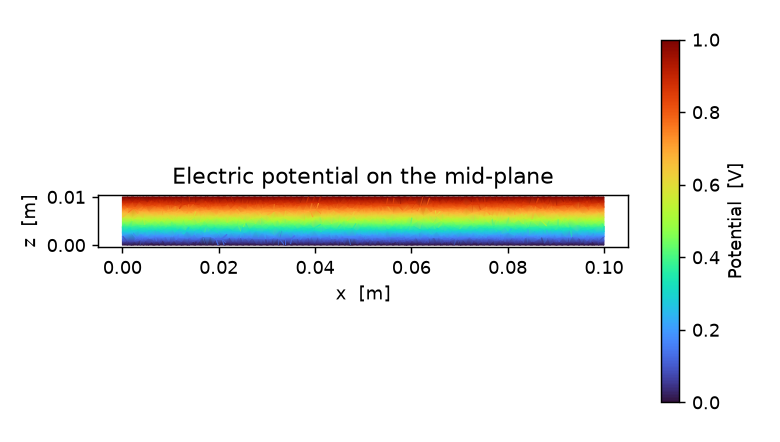
The field rises linearly across the gap and is uniform along the plates, exactly the ideal parallel-plate result.
A good assistant also sanity-checks it: for an ideal parallel-plate capacitor \(C = \varepsilon_0 A / d\) and \(U = \tfrac12 C V^2\), which give \(8.854 \times 10^{-12}\ \text{F}\) and \(4.427 \times 10^{-12}\ \text{J}\). The simulation matches to six significant figures.
Your job is to review the parts that encode the physics you want: the geometry and region names, the boundary conditions, and the reported quantities. The assistant writes, runs, and checks the boilerplate. You stay in the loop on the physics.